
Input/Output
Input/Output
An important part of scripting in a system- and network-administration context is the ability to read and write data from and to files. Some common examples include:
- Reading and altering configuration files.
- Reading a list of usernames and creating new users.
- Reading log files to extract information about the system or network.
Reading from a file
Before we can read from a file, we must first open it using the built-in open function.
Concept: open
The open function is used to open a file and returns a file object. The file object can then be used to read from or write to the file, depending on the mode specified when opening the file.
file_handle = open(file, mode="r", encoding=None)The file parameter is either an absolute path or a path relative to the working directory (the directory from which the script is executed, not the directory where the script is located).
The mode parameter is one of the following strings:
| Parameter | Description |
|---|---|
'r' | Open for reading (default). |
'w' | Open for writing, truncating the file first (any existing content is overwritten). |
'x' | Open for exclusive creation, failing if the file already exists. |
'a' | Open for writing, appending to the end of the file if it exists. |
'r+' | Open for reading and writing. |
The encoding parameter specifies the encoding to use when reading or writing the file. If not specified, the default encoding is used, which is platform-dependent (e.g., UTF-8 on most modern systems). A full list of supported encodings can be found in the Python documentation.
While it is possible to use the file handle returned by the open() function directly, it is recommended to use a with statement.
Concept: with
The with statement is used to automatically manage resources, such as file handles, ensuring that they are properly cleaned up after use. When used with file operations, it automatically closes the file when the block of code is exited, even if an error occurs.
This is important because keeping a file open for longer than necessary can lead to resource leaks and other issues such as a file being locked and unavailable for other processes.
with open(file, mode) as file_handle:
    # Perform file operations using file_handle
    ...

# The file is no longer open here, and file_handle is automatically closed.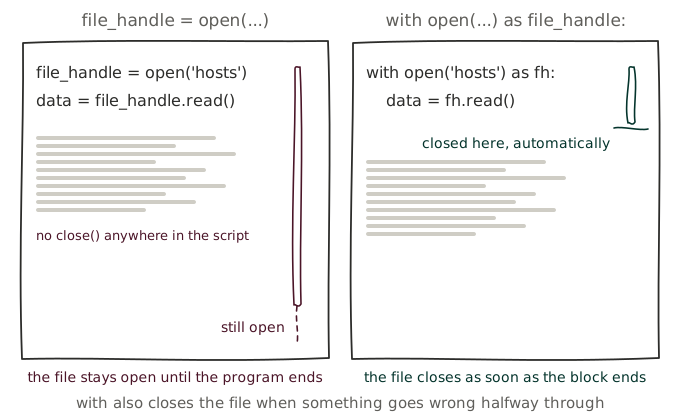
Using the with statement and open function allows us to safely open a file. We then use the readlines() method to read the contents of the file into a list of strings, where each item represents a line in the file.
with open('./users.csv', 'r') as file:
    for line in file.readlines():
print(line)username,full_name,role,department,shell
jsmith,John Smith,admin,IT,/bin/bash
mgarcia,Maria Garcia,developer,Engineering,/bin/bash
apatel,Amit Patel,support,Helpdesk,/bin/bash
lchen,Lisa Chen,manager,Operations,/bin/bash
rwilliams,Robert Williams,developer,Engineering,/bin/bash
sdubois,Sophie Dubois,student,Education,/bin/bash
tvermeer,Tom Vermeer,teacher,Education,/bin/bash
kjanssens,Kevin Janssens,intern,Engineering,/bin/bash
nvandenberg,Nina Vandenberg,admin,IT,/bin/bash
ohassan,Omar Hassan,support,Helpdesk,/bin/bash
ebakker,Emma Bakker,developer,Engineering,/bin/bash
pmartin,Pierre Martin,guest,External,/bin/rbash
fclaes,Fien Claes,manager,Operations,/bin/bash
dwouters,Dries Wouters,student,Education,/bin/bash
hleroy,Hugo Leroy,teacher,Education,/bin/bash
lwei,李伟,developer,Engineering,/bin/bashWhich will output
username,full_name,role,department,shell
jsmith,John Smith,admin,IT,/bin/bash
mgarcia,Maria Garcia,developer,Engineering,/bin/bash
apatel,Amit Patel,support,Helpdesk,/bin/bash
lchen,Lisa Chen,manager,Operations,/bin/bash
rwilliams,Robert Williams,developer,Engineering,/bin/bash
sdubois,Sophie Dubois,student,Education,/bin/bash
tvermeer,Tom Vermeer,teacher,Education,/bin/bash
kjanssens,Kevin Janssens,intern,Engineering,/bin/bash
nvandenberg,Nina Vandenberg,admin,IT,/bin/bash
ohassan,Omar Hassan,support,Helpdesk,/bin/bash
ebakker,Emma Bakker,developer,Engineering,/bin/bash
pmartin,Pierre Martin,guest,External,/bin/rbash
fclaes,Fien Claes,manager,Operations,/bin/bash
dwouters,Dries Wouters,student,Education,/bin/bash
hleroy,Hugo Leroy,teacher,Education,/bin/bash
lwei,李伟,developer,Engineering,/bin/bashThere is an obvious problem with the output: each line is followed by an empty line. This is because the print() function adds a newline character at the end of each line, and the lines read from the file already contain a newline character. To fix this, we can use the strip() method to remove any leading or trailing whitespace characters (including newlines) from each line before printing it.
with open('./users.csv', 'r') as file:
for line in file.readlines():
print(line.strip())After running the script, the output will be as expected:
username,full_name,role,department,shell

jsmith,John Smith,admin,IT,/bin/bash

mgarcia,Maria Garcia,developer,Engineering,/bin/bash

apatel,Amit Patel,support,Helpdesk,/bin/bash

lchen,Lisa Chen,manager,Operations,/bin/bash

rwilliams,Robert Williams,developer,Engineering,/bin/bash

sdubois,Sophie Dubois,student,Education,/bin/bash

tvermeer,Tom Vermeer,teacher,Education,/bin/bash

kjanssens,Kevin Janssens,intern,Engineering,/bin/bash

nvandenberg,Nina Vandenberg,admin,IT,/bin/bash

ohassan,Omar Hassan,support,Helpdesk,/bin/bash

ebakker,Emma Bakker,developer,Engineering,/bin/bash

pmartin,Pierre Martin,guest,External,/bin/rbash

fclaes,Fien Claes,manager,Operations,/bin/bash

dwouters,Dries Wouters,student,Education,/bin/bash

hleroy,Hugo Leroy,teacher,Education,/bin/bash

lwei,李伟,developer,Engineering,/bin/bashLine by line
The readlines() method reads the entire file into memory at once, which is fine for small files, but can be inefficient for large files.
Consider a large log file that is several gigabytes in size and must be analyzed. This file could, of course, still be read into memory at once using the readlines() method, but this would cause the program to need at least as much RAM as there are bytes in the file.
Instead, the file should be read line by line, which can be done by iterating over the file handle directly.
To illustrate the importance, the generate_log.py script was used to generate an SSH log file of about 5GB in size. Then we can execute the following two scripts to show the difference in performance between reading the file line by line and reading the entire file into memory at once.
with open('./auth.log', 'r') as file:
    for line in file:
continuewith open('./auth.log', 'r') as file:
lines = file.readlines()
for line in lines:
continueThe following two run were benchmarked by the GNU time command.

Concept: Reading files
There are two common ways to read the contents of a file in Python: using the readlines() method or iterating over the file handle directly. Each has their own advantages and disadvantages, and the choice of which to use depends on the specific use case.
| Reading method | Example | When to use |
|---|---|---|
readlines() | 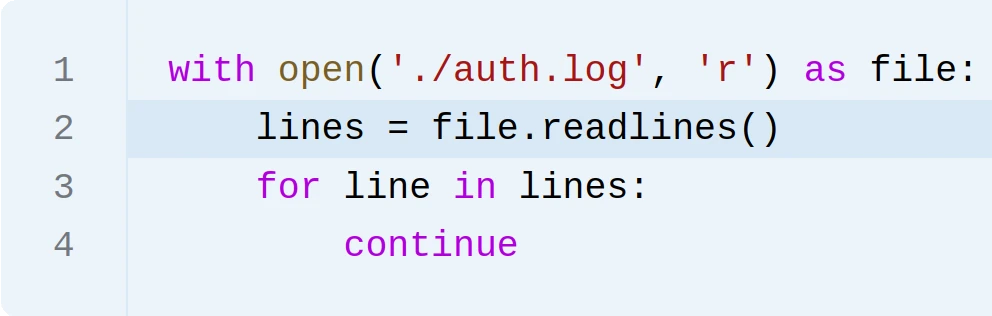  | Use for small files that can fit into memory. Where you need list methods to process the data. |
| Iterating over the file handle | 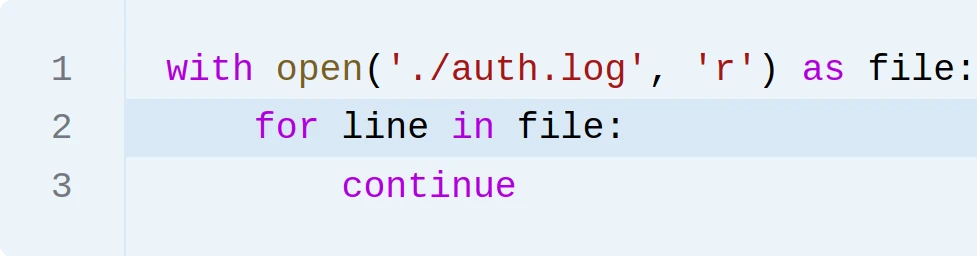 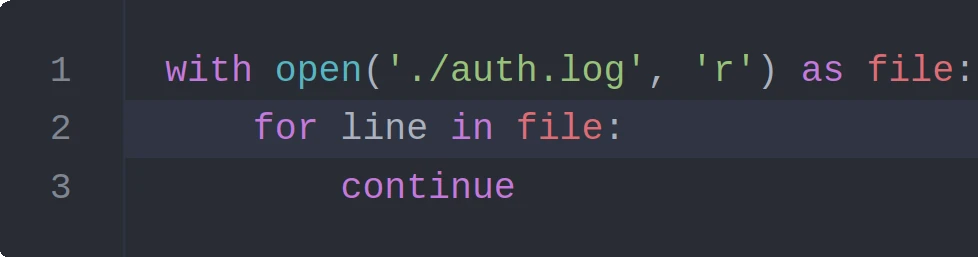 | Use for large files that cannot fit into memory. Where you need to process the data line by line. |
CSV Files
While to code above works, we're not yet extracting data from the CSV file in a structured way. We could of course split each line on the comma character, but this would not work for CSV files that contain commas in the data (e.g. "column 1 data", "User1, User2, User3", "column 3 data"). Therefore, we will use the built-in csv module to read and write CSV files.
The csv module provides a reader object that can be used to read CSV files in a structured way. Each line is split into a list of values, and the reader object can be iterated over to access each line in the file. Since the first line of the CSV file contains the column headers, we will skip it by using the enumerate() function to get the index of each line and continue to the next iteration if the index is 0.
Since we only get a list of values for each line, we must use the index of each value to access the data we need.
import csv

with open('./users.csv', 'r') as file:
    csv_file = csv.reader(file, delimiter=',')
    for i, line in enumerate(csv_file):
        if i == 0:
            continue
        print(f"Created user {line[0]} for {line[1]}")
The script produces the following output:
Created user jsmith for John Smith
Created user mgarcia for Maria Garcia
Created user apatel for Amit Patel
Created user lchen for Lisa Chen
Created user rwilliams for Robert Williams
Created user sdubois for Sophie Dubois
Created user tvermeer for Tom Vermeer
Created user kjanssens for Kevin Janssens
Created user nvandenberg for Nina Vandenberg
Created user ohassan for Omar Hassan
Created user ebakker for Emma Bakker
Created user pmartin for Pierre Martin
Created user fclaes for Fien Claes
Created user dwouters for Dries Wouters
Created user hleroy for Hugo Leroy
Created user lwei for 李伟
While parsing the CSV file in this way works, using the DictReader class from the csv module is a more elegant solution. This way, each line is returned as a dictionary, where the keys are the column headers and the values are the corresponding data for that line. Since the DictReader class automatically uses the first line of the CSV file as the keys for the dictionaries, we no longer need to skip the first line of the file.
import csv

with open('./users.csv', 'r') as file:
    csv_file = csv.DictReader(file, delimiter=',')
    for line in csv_file:
        print(f"Created user {line['username']} for {line['full_name']}")
Note
The default version of the DictReader class uses the first line of the CSV file as the keys for the dictionaries. If the CSV file does not contain a header row, you can specify the fieldnames parameter when creating the DictReader object to provide a list of keys to use for the dictionaries.
import csv

with open('./users.csv', 'r') as file:
    csv_file = csv.DictReader(file, delimiter=',', fieldnames=['username', 'full_name', 'role', 'department', 'shell'])
Encoding
The previous script works great for the file we used, but it will fail for files that use a different character encoding than the default one used by the open() function (UTF-8 on most modern systems).
Using the users_utf16.csv file, the script will raise a UnicodeDecodeError when trying to read the file.
Using the encoding parameter of the open() function, we can specify the correct encoding to use when reading the file.
There is no build-in way to determine the encoding of a file. However, libraries like charset-normalizer do allow for detection. Installing external libraries is discussed in chapter 8, so for now we will just hardcode the encoding.
import csv

with open('./users_utf16.csv', 'r', encoding="utf-16") as file:
    csv_file = csv.DictReader(file, delimiter=',')
    for line in csv_file:
        print(f"Created user {line['username']} for {line['full_name']}")
Writing to a file
Concept: Writing files
A file handle can be used to write data to a file using the write() method. The file must be opened in a mode that allows writing, such as 'w', 'a', or 'r+'.
The write() method takes a single string as an argument and writes it to the file. The writelines() method can be used to write a list of strings to the file. Neither of these methods automatically add a newline character at the end of the string, so you must include it if you want to write multiple lines.
The encoding parameter specifies the encoding to use when writing the file. If not specified, the default encoding is used, which is platform-dependent (e.g., UTF-8 on most modern systems). A full list of supported encodings can be found in the Python documentation.
with open(file, mode="w", encoding=None) as file_handle:
    # Write a single string to the file.
    file_handle.write("Hello, World\n")

    # Write a list of strings to the file.
    file.file_handle.writelines(["Line 1", " Line 1, Part II\n", "Line 2"])
To illustrate writing to a file, we will create a script that reads the users_errors.csv file and write the line that contain errors to a log file.
The input file is made up of mostly valid lines, but some lines are missing the username field.
import csv

with open('./users_errors.csv', 'r') as file, open('./error.log', 'a') as error_file:
    csv_file = csv.DictReader(file, delimiter=',')
    for line in csv_file:
        if line['username'] != '':
            print(f"Created user {line['username']} for {line['full_name']}")
        else:
            error_file.write(f"Couldn't create user for {line['full_name']}: username is missing\n")
Note that we opened the error log file in append mode ('a'), so that if the script is run multiple times, the errors will be appended to the end of the file instead of overwriting it. We've also used with with multiple resources, each of these files will be closed automatically when the block is exited.
Finally, we've also added a newline character at the end of the error message, so that each error is written on a new line in the log. This is an absolute requirement when writing to a file, as the write() (and writelines) methods do not add a newline character automatically.
When the script runs, the following output is written to the error.log file:
Couldn't create user for Amit Patel: username is missing
Couldn't create user for Omar Hassan: username is missing
Couldn't create user for Hugo Leroy: username is missing